⚠️ Warning: This guide provides a general overview of the configuration process. Technical requirements vary by environment; always consult your internal IT or security teams before applying these settings. If you would like to complete this setup with a Foleon technical expert, please contact Foleon Support or your Customer Success Manager.
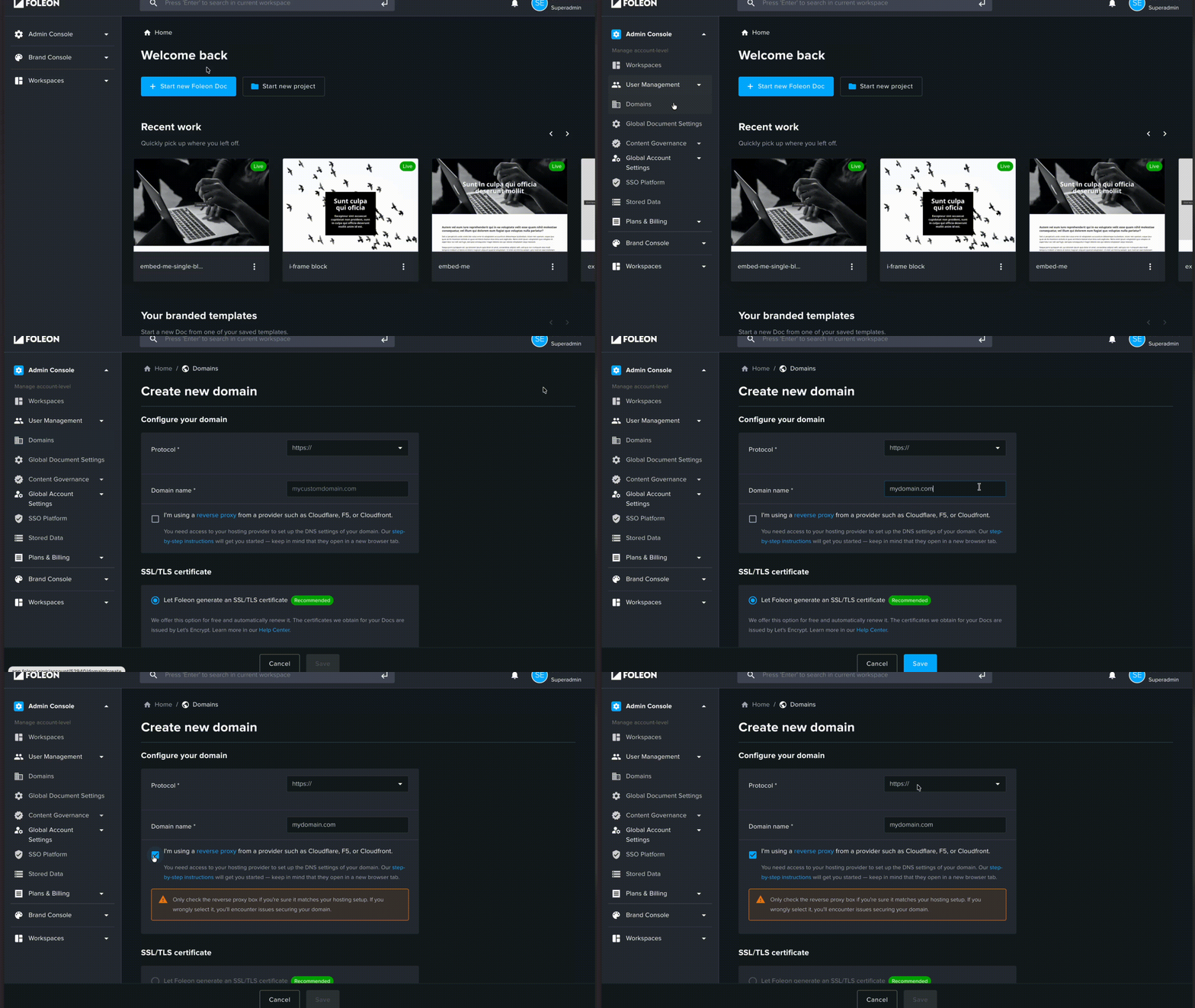
- login to Foleon
- go to "Domains" in the Admin Console (or your workspace)
- Use HTTPS protocol to ensure End to End encryption
- Click "Create new Domain"
- Fill in the domain
- Click the checkbox for reverse proxy
- (optional) enter your certificate details
- Click "save"
Use the rewrites function in your configuration file:
module.exports = {
  async rewrites() {
    return [
      {
        source: '/:path*',
        destination: 'https://s1.foleon.com/en/guides/:path*',
      },
    ]
  },
}
Change
/en/guides/ to your preferred base path.
Change the destination to
https://s1.us.foleon.com/en/guides/:path* if your content is hosted in the US.
Vercel rewrites alone are not sufficient for Foleon. You must forward the original host using middleware. Create a middleware.ts script in your root folder (same level as package.json) and add the following:
import { NextResponse } from 'next/server'
import type { NextRequest } from 'next/server'

export function middleware(request: NextRequest) {
  const { pathname, search } = request.nextUrl

  if (!pathname.startsWith('/en/guides')) {
    return NextResponse.next()
  }

  const hostname = request.headers.get('host')
  const destination = `https://s1.foleon.com${pathname}${search}`

  const requestHeaders = new Headers(request.headers)
  if (hostname) {
    requestHeaders.set('x-forwarded-host', hostname)
  }

  return NextResponse.rewrite(new URL(destination), {
    request: {
      headers: requestHeaders,
    },
  })
}

export const config = {
  matcher: ['/en/guides/:path*'],
}
Change
/en/guides/ to your preferred base path.
Change the destination to
https://s1.us.foleon.com/en/guides/:path* if your content is hosted in the US.
Deploy: Push your changes to your repository or run
vercel --prod.Verify: Navigate to
https://yourcompany.com/en/guides/. You should see a Foleon404page. This confirms Vercel is successfully communicating with Foleon’s servers.Success: Once you complete Step 4, your content should load seamlessly.
- Login to foleon.
- Go to project settings.
- Select the newly created domain.
- Setup the basepath / subfolder you want to use to publish your documents on.
- Make sure to publish a document in this project.
TIP: You can setup multiple projects with the same basepath e.g.
/en/guide/finance/ and /en/guide/legal/