In reverse-proxy mode you terminate TLS at CloudFront with your own certificate, and CloudFront forwards requests to Foleon's edge (s1.foleon.com). Foleon does not hold a certificate for your domain, so how CloudFront talks to the origin matters:
- CloudFront derives the TLS SNI it sends to the origin from the
Hostheader it forwards. If you forward your ownHost, CloudFront presents SNIyour-domain.comto Foleon's load balancer — which has no certificate for it — and the TLS handshake fails with a502 Bad Gateway. - The fix: do not forward the
Hostheader. CloudFront then connects to the origin ass1.foleon.com(a name Foleon does have a certificate for), and you tell Foleon which document to serve by sending your domain in theX-Forwarded-Hostheader instead.
Foleon's gateway resolves the document from X-Forwarded-Host (falling back to Host only when X-Forwarded-Host is absent).
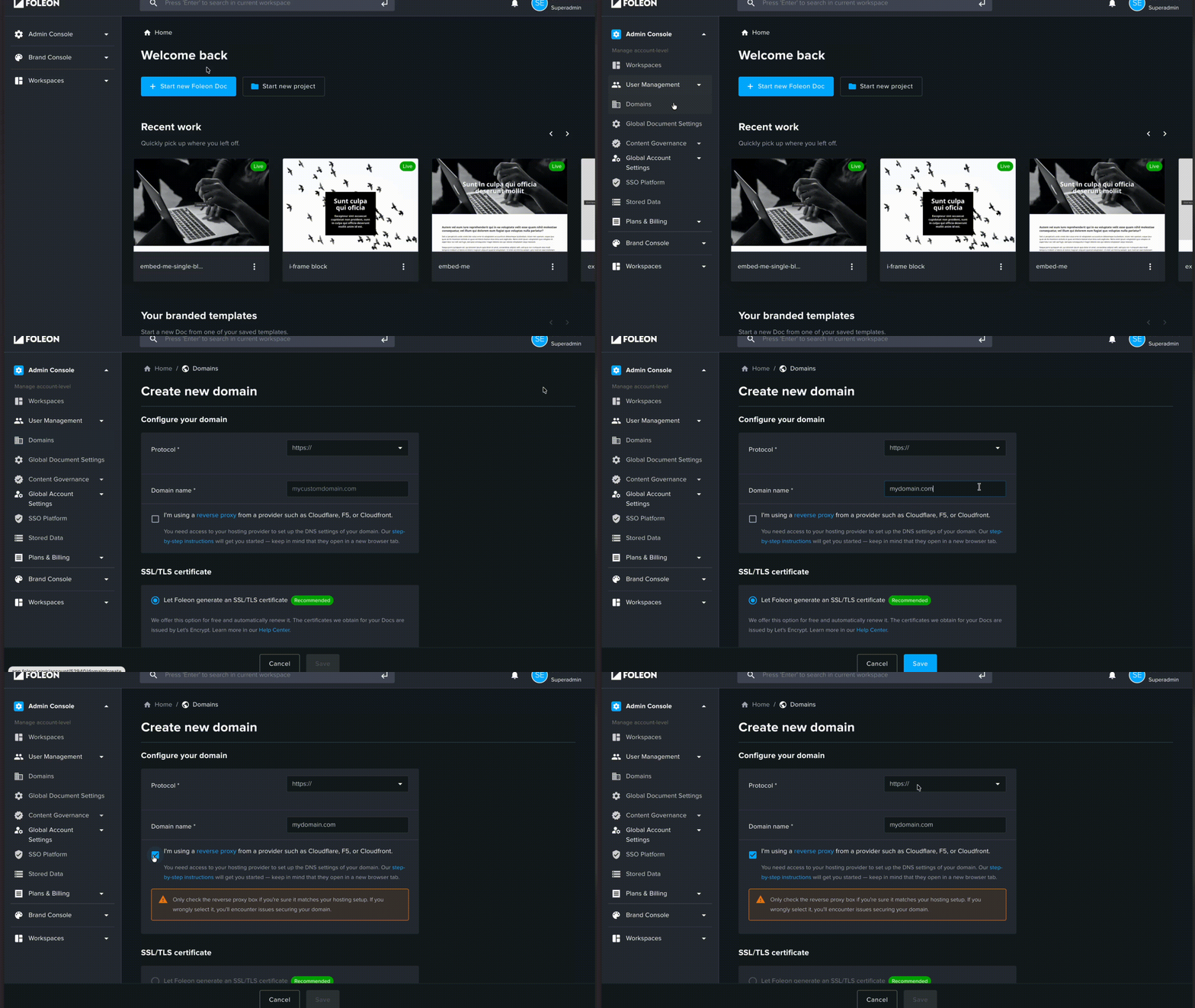
- Login to Foleon
- Go to "Domains" in the Admin Console (or your workspace)
- Use HTTPS protocol to ensure end-to-end encryption
- Click "Create new Domain"
- Fill in the domain
- Click the checkbox for Reverse proxy — this tells Foleon to route the domain by the
X-Forwarded-Hostheader and not to provision a certificate for it on Foleon's side - Click "Save"
- In AWS Certificate Manager, switch the region to N. Virginia (
us-east-1) — CloudFront only reads certificates from this region. - Request a public certificate for
your-domain.comand validate it (DNS validation recommended).
In your CloudFront Distribution, create a new Origin:
- Origin Domain:
s1.foleon.com(EU) ors1.us.foleon.com(US) - Protocol:
HTTPS only - Origin path: leave empty — adding an origin path would prepend it to the viewer URL, producing a doubled path (e.g.
/hub/hub/...) - Name: Give it a clear name like
FoleonOrigin - Add custom header:
- Header name:
X-Forwarded-Host - Value:
your-domain.com
- Header name:
X-Forwarded-Host header is how Foleon identifies which project/document to serve. Do not add an X-Forwarded-Proto header — the origin load balancer already sets it on the HTTPS hop, and a duplicate value will corrupt the URL the gateway builds.
Create a new Behavior to "catch" the Foleon path:
- Path Pattern:
/en/guides/*(example) - Origin: Select the
FoleonOrigincreated in Step 3 - Viewer Protocol Policy:
Redirect HTTP to HTTPS - Allowed HTTP Methods:
GET,HEAD,OPTIONS,PUT,POST,PATCH,DELETE - Origin Request Policy:
AllViewerExceptHostHeader(managed) — this forwards all viewer headers, cookies, and query strings exceptHost, so CloudFront connects to the origin ass1.foleon.com - Cache Policy:
CachingDisabled(managed) — see the Caching section below - Compress objects automatically: Yes
AllViewer policy and do not add Host to a cache policy's header allow-list. Both forward the Host header and will produce a 502 Bad Gateway.
/en/guides/* to your preferred base path. For example: /publications/*- In the distribution's General → Settings, add the Alternate domain name (CNAME):
your-domain.com - Select the ACM certificate you created in Step 2 (
us-east-1) - SSL support method: SNI only
- Minimum protocol version: TLSv1.2_2021
Create a CNAME record: your-domain.com → your distribution's domain (dxxxx.cloudfront.net).
For a zone apex, use your DNS provider's ALIAS/ANAME record instead.
- Deploy: Save changes and wait for the status to reach "Deployed" (usually 3–15 minutes).
- Verify: Navigate to
https://your-domain.com/en/guides/. You should see a Foleon404page — this confirms CloudFront is correctly talking to Foleon. - Success: Once you complete Step 8, your content will load.
- Login to Foleon.
- Go to project settings.
- Select the newly created domain.
- Set up the base path / subfolder you want to use to publish your documents on.
- Make sure to publish a document in this project.
/en/guide/finance/ and /en/guide/legal/CachingDisabled is the safe default: Foleon documents can be access-controlled or personalized (cookies / query tokens), and caching by URL alone could serve one visitor's content to another.
If your documents are fully public and you want CDN caching, use a custom cache policy that honors the origin's Cache-Control headers but does not include Host in the cache key. Never re-introduce Host into the cache key — it forwards the header and causes a 502.
| Symptom | Cause | Fix |
|---|---|---|
502 Bad Gateway | The Host header is being forwarded → CloudFront sends SNI your-domain.com, which Foleon's origin has no cert for | Use AllViewerExceptHostHeader; make sure no cache policy puts Host in the key. Confirm the X-Forwarded-Host custom header is set. |
502 only on the raw *.cloudfront.net URL | Expected when Host is forwarded — the cloudfront.net host isn't a Foleon domain | Test via your real domain, not the cloudfront.net URL |
| Foleon 404 page | Reached the gateway, but no document matches the host + path | Check the domain is assigned to a project, the base path matches your URL, and a document is published |
| Infinite redirect loop | Origin set to HTTP only; the gateway redirects HTTP→HTTPS | Set the origin protocol to HTTPS only |
| 400 / blank page | X-Forwarded-Proto set manually and duplicated by the LB, corrupting the built URL | Remove any X-Forwarded-Proto custom header |
The static X-Forwarded-Host custom header hard-wires a distribution to a single domain. To serve several domains from one distribution, remove that custom header and attach a CloudFront Function on viewer request that copies the incoming host into X-Forwarded-Host:
function handler(event) {
  var req = event.request;
  req.headers['x-forwarded-host'] = { value: req.headers.host.value };
  return req;
}
Keep the AllViewerExceptHostHeader origin request policy so the viewer Host is still stripped on the way to the origin — the function-set X-Forwarded-Host is what carries the domain identity.