In reverse-proxy mode you terminate TLS at Imperva with your own certificate, and Imperva forwards requests to Foleon's edge (s1.foleon.com). Foleon does not hold a certificate for your domain, so how Imperva talks to the origin matters:
- Imperva forwards the visitor's
Hostheader to the origin by default. Left alone, the origin TLS handshake is attempted foryour-domain.com, which Foleon's load balancer has no certificate for, and the request fails with a502. - The fix: rewrite the
Hostheader tos1.foleon.combefore the request leaves Imperva, and tell Foleon which document to serve by sending your domain in theX-Forwarded-Hostheader instead.
Foleon's gateway resolves the document from X-Forwarded-Host (falling back to Host only when X-Forwarded-Host is absent).
Unlike CloudFront, Imperva has no "forward everything except Host" switch — both header changes are done with Delivery Rules, and both must be in place before you point DNS.
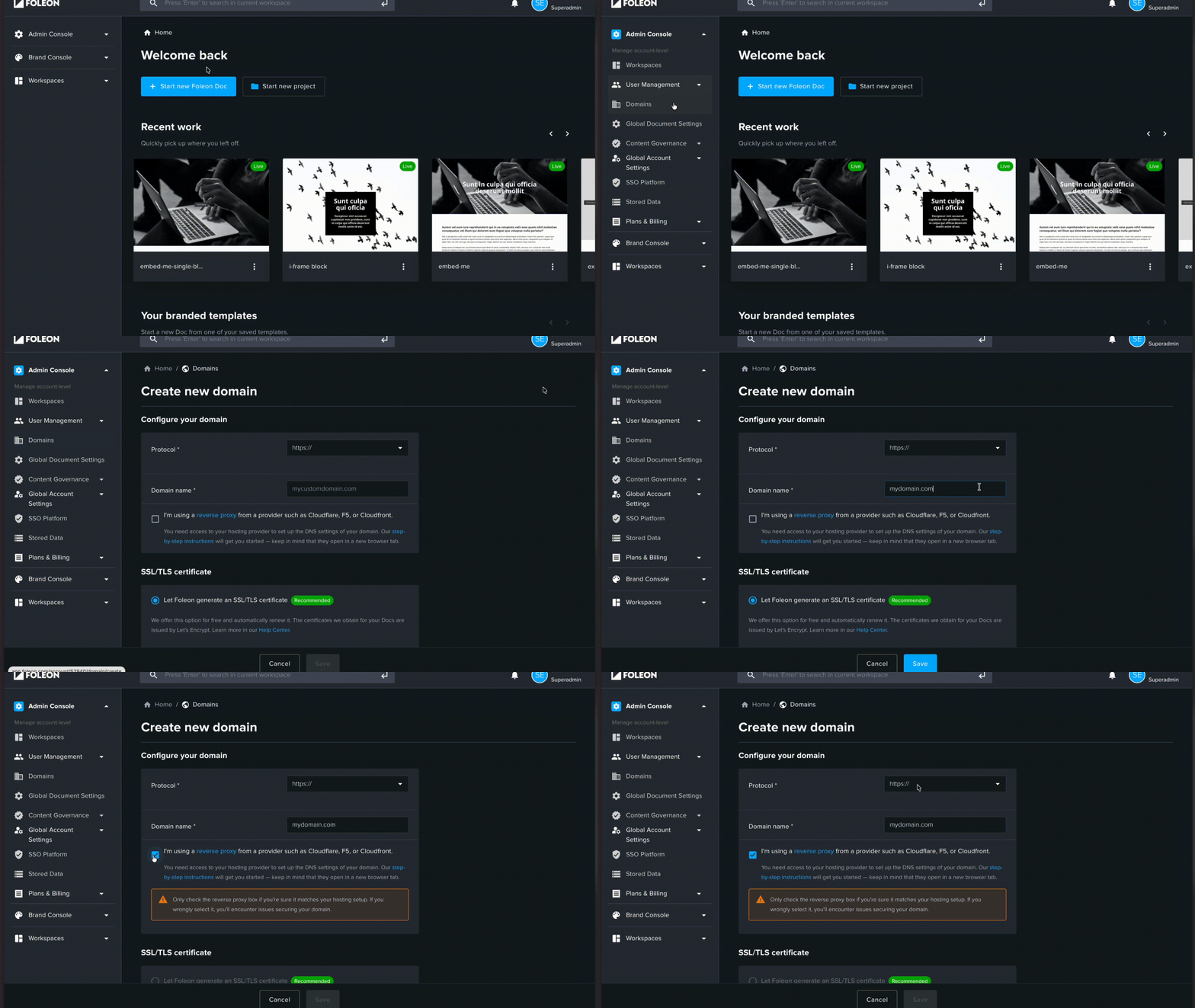
- Login to Foleon
- Go to "Domains" in the Admin Console (or your workspace)
- Use HTTPS protocol to ensure end-to-end encryption
- Click "Create new Domain"
- Fill in the domain
- Click the checkbox for Reverse proxy — this tells Foleon to route the domain by the
X-Forwarded-Hostheader and not to provision a certificate for it on Foleon's side - Click "Save"
- In the Imperva Cloud Application Security console, add a new site for
your-domain.com. - Imperva will give you a site CNAME (and a set of A records for apex domains). Do not change your DNS yet — finish the origin and rule configuration first, or your visitors will hit a broken origin.
- Leave the site in SNI-only mode (the default for new sites).
Create a data center for Foleon and add a single origin server:
- Origin server:
s1.foleon.com(EU) ors1.us.foleon.com(US) - Protocol / port: HTTPS,
443 - SSL to origin: enabled
Use the hostname, not an IP address. Foleon's edge sits behind a load balancer and its IPs change without notice — a pinned IP will break silently. If your account only accepts IP-based origins, contact Foleon Support before going further.
Do not set an origin path. Imperva passes the visitor path through as-is, which is what Foleon expects; prepending a path produces a doubled URL (e.g. /hub/hub/...).
Add a Delivery Rule:
- Action: Rewrite Header
- Header name:
Host - Value:
s1.foleon.com(ors1.us.foleon.com)
This is the rule that keeps the origin TLS handshake alive. Without it you get a 502 on every request.
Add a second Delivery Rule:
- Action: Rewrite Header
- Header name:
X-Forwarded-Host - Value:
your-domain.com
Because an Imperva site is scoped to one domain, a static value is fine here — there is no need for the dynamic host-copying you would use on a shared CloudFront distribution.
Do not add an
X-Forwarded-Protoheader. The origin load balancer already sets it on the HTTPS hop, and a duplicate value will corrupt the URL the gateway builds.
Make sure both rules are ordered so they run before any forwarding rule.
Skip this if the whole domain serves Foleon content.
If only a subfolder should reach Foleon (e.g. /publications/) while the rest of the site stays on your existing origin:
- Add a Forward to Data Center rule filtered on the URL prefix, pointing at the Foleon data center from Step 3.
- Add the same URL-prefix condition to the two header rules from Steps 4 and 5, so the rest of your site keeps its own
Hostuntouched.
- Let Imperva provision the certificate for
your-domain.com, or upload your own. - Once the certificate is active and the rules are saved, point DNS at Imperva: a
CNAMEto your Imperva site CNAME, or the provided A records for a zone apex.
Disable caching for the Foleon path. Foleon documents can be access-controlled or personalized (cookies / query tokens), and caching by URL alone could serve one visitor's content to another.
If your documents are fully public and you want CDN caching, use a cache mode that honors the origin's Cache-Control headers, and never include Host in the cache key.
- Login to Foleon.
- Go to project settings.
- Select the newly created domain.
- Set up the base path / subfolder you want to use to publish your documents on.
- Make sure to publish a document in this project.
TIP: You can set up multiple projects with the same base path, e.g.
/en/guide/finance/and/en/guide/legal/
Before touching DNS, confirm the origin contract directly:
curl -I https://s1.foleon.com/en/guides/ -H "X-Forwarded-Host: your-domain.com"A Foleon 404 page means the origin side is sound. A 502 or TLS error means the problem is upstream of Imperva.
After the DNS cutover, browse to https://your-domain.com/en/guides/. A Foleon 404 confirms Imperva is talking to Foleon correctly; the content loads once Step 9 is complete.
| Symptom | Cause | Fix |
|---|---|---|
502 | The visitor Host is still being forwarded, so the origin TLS handshake is attempted for a name Foleon has no certificate for | Confirm the Host rewrite rule from Step 4 exists, is enabled, and matches the requested path |
| Foleon 404 page | Reached the gateway, but no document matches the host + path | Check the domain is assigned to a project, the base path matches your URL, and a document is published |
| Infinite redirect loop | Origin configured as HTTP; the gateway redirects HTTP→HTTPS | Set the origin data center to HTTPS on port 443 |
| 400 / blank page | X-Forwarded-Proto set manually and duplicated by the LB, corrupting the built URL | Remove any X-Forwarded-Proto rule |
| Origin unreachable after weeks of working | Origin pinned to an IP address that has since changed | Switch the origin server to the s1.foleon.com hostname |